Is Canva Pro worth it?
Is Canva Pro worth it for a small business? What Canva's own plan page shows for AI, Brand Kits and storage, who should stay on Free and the data risks.
Canva Pro is worth it for a small business only if you hit one of its limits. For most businesses that make a few designs a month for a single brand, the Free plan does the job. Pro earns its place when you design for several brands, use the AI tools every week, lean on premium templates and stock, or schedule social posts from Canva.
This review is based on Canva’s own plan page as it stood on 14 October 2026 and on Canva’s privacy policy, last updated on 25 August 2026. We have not run a hands-on test of Pro. We also leave out prices on purpose, because they change: check the plan page for today’s figures.
Read the words in this video
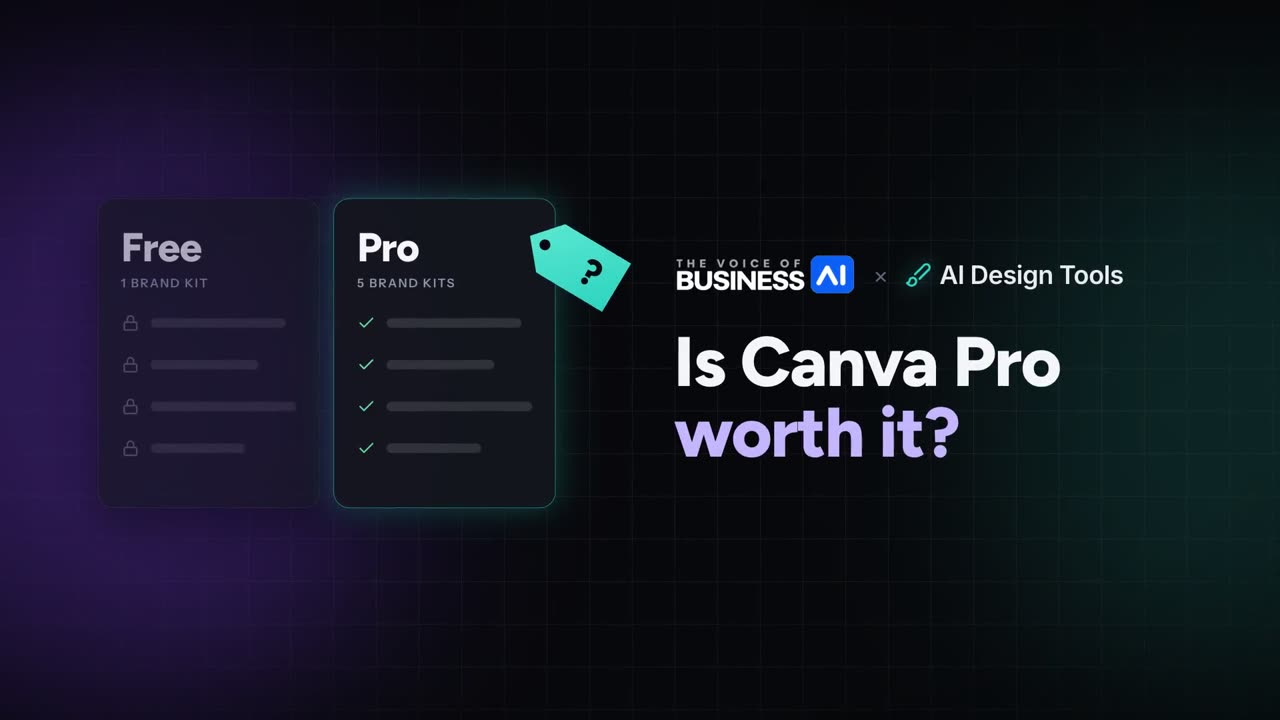
- Is Canva Pro worth it?
- Free is often enough. For one brand and a few designs a month, the Free plan does the job.
- Five Brand Kits on Pro. Free has one, limited to three colours, so the gap matters if you design for several brands.
- Ten times more AI. Pro lists resize, translate and remove background, plus 100GB of storage against 5GB.
- Three numbers decide it. Count the hours it saves and what an hour is worth, then check today's price.
- It may train AI on your content. Canva's privacy policy says so, and you can change it in your privacy settings.
- Test it on a real week. Count what you use, then decide before the trial ends.
Key takeaways
- Free is enough for one brand and occasional designs. It includes 1 Brand Kit limited to 3 colours, 5GB of storage and up to 20 AI uses.
- Pro lists 5 Brand Kits, 100GB of storage, social content scheduling, premium templates and stock, and ten times the AI allowance of Free.
- Business is the plan for teams. It lists collaboration and team admin tools, 100 Brand Kits with approvals and twenty times the AI allowance of Free.
- Canva may use your content to train its AI unless you change the setting in your privacy controls.
- Do not upload customer personal data to a design tool without a lawful basis and a settings check.
- AI-made images that look like real people or events can carry a disclosure duty under the EU AI Act.
- Work out whether Pro pays for itself with three numbers: the hours it saves, the value of an hour and the plan’s current price.
- Test it for a week on real work before the trial ends, and keep a tally of the features you actually use.
Is Canva Pro worth it for a Small Business?
It depends on how you design. A simple test is to ask which of these describe you.
Stay on Free if
You design for one brand
You make a few designs a month
You rarely use the AI tools
Standard templates are enough
Move to Pro if
You manage up to five brands
You use the AI tools every week
You want premium templates and stock
You schedule social posts from Canva
If you find yourself on the right-hand side more than the left, Pro is likely to pay for itself in time saved. If you are on the left, you may be paying for features you do not use. Our guide on whether your AI tool is actually saving time gives a simple way to check, and it applies as well to a design tool as to a chat assistant.
What is the difference between Canva Free and Canva Pro?
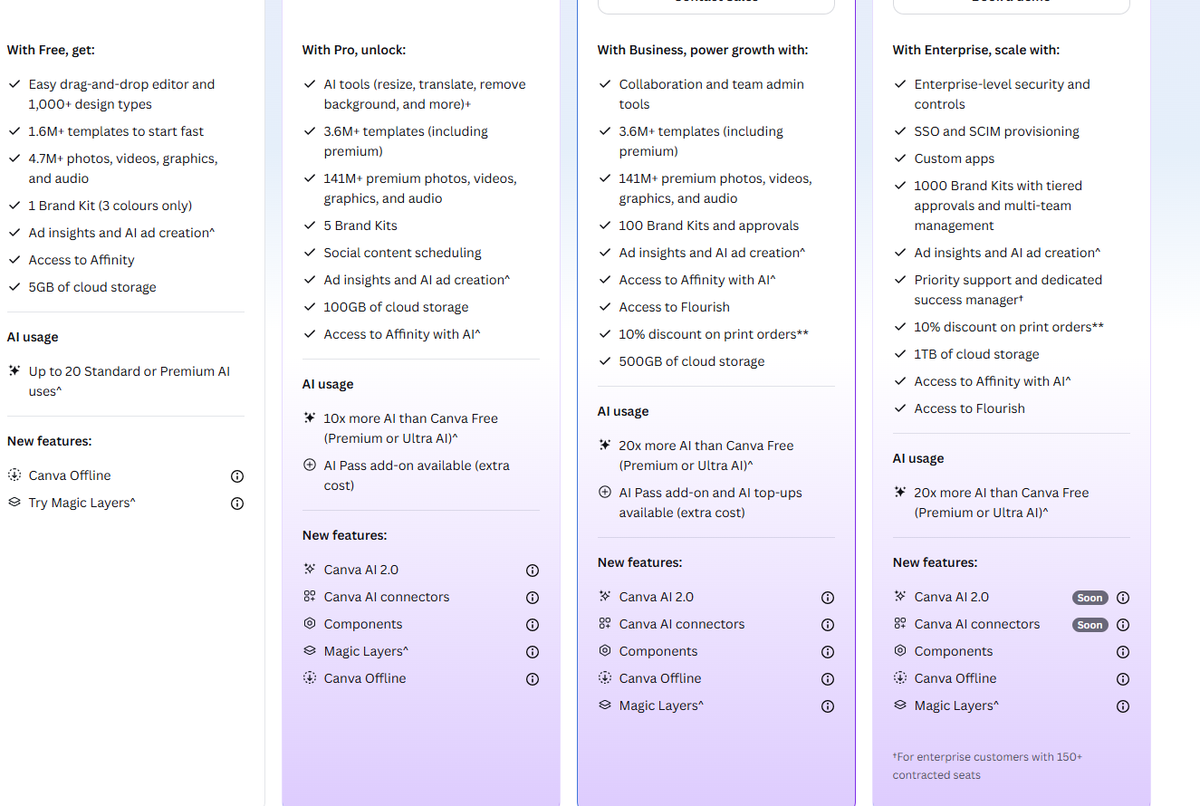
Canva’s plan page puts the plans side by side. The table below is Canva’s own, captured on 14 October 2026.
The differences that matter most to a small business are these.
Brand Kits. Free gives you 1 Brand Kit, limited to 3 colours. Pro lists 5. A Brand Kit stores a brand’s colours, fonts and logos, so the gap matters if you design for more than one brand or client.
AI. Pro lists AI tools such as resize, translate and remove background, and ten times the AI allowance of Free. We cover this in the next section.
Templates and stock. Pro lists 3.6M+ templates including premium ones and 141M+ premium photos, videos, graphics and audio. Free lists 1.6M+ templates and 4.7M+ stock items. Whether that matters depends on how much of your work uses stock.
Storage and scheduling. Pro lists 100GB of cloud storage against 5GB on Free, and social content scheduling.
How much AI does Canva Pro include?
Canva sets AI limits by plan and does not give one flat figure. On its plan page, Free allows up to 20 Standard or Premium AI uses. Pro lists ten times that allowance, and Business and Enterprise list twenty times. Pro and Business also list an AI Pass add-on at extra cost for heavier use.
Pro also lists newer items: Canva AI 2.0, Canva AI connectors, Components and Magic Layers. Canva marks several AI lines on the page with footnotes that set conditions, so read those on Canva’s own page before you decide, because they decide what an “AI use” actually costs you in allowance.
The honest way to judge the AI is to count how often you would use it. Remove background, resize and translate save real time on a social campaign. If you would use them a handful of times a month, the Free allowance may cover you. If you would use them daily, Pro is much more likely to pay off.
How do you work out if Canva Pro pays for itself?
You do not need a spreadsheet. You need three numbers, and you can collect all of them in a week.
- Hours saved. Note how long a typical design takes you now, then how long it takes with the Pro features, such as removing a background or resizing one design for several channels.
- The value of an hour. Use what an hour of your own time, or your team’s, is worth to the business.
- The plan’s current price. Read it on Canva’s plan page, because the figure changes. If you pay yearly, divide it by twelve.
Pro pays for itself when the hours you save in a month, multiplied by the value of an hour, come to more than the plan’s monthly price. Count only time on work you would have done anyway. A design you would never have made does not count as a saving.
If the result is close, the other limits matter more than the arithmetic: a second Brand Kit, or more storage. If it is clearly lower, stay on Free and check again in a few months.
Which Canva plan is Right for a team?
Canva calls its team plan Business, and it is listed for individuals and teams. It adds collaboration and team admin tools, 100 Brand Kits with approvals, 500GB of storage and twenty times the Free AI allowance. Canva’s own page calls this plan Business, though you may still see it described as Teams elsewhere.
The approvals feature is the one to look at if more than one person publishes. It means a design can be checked before it goes out, which is a real control for a business that has had an off-brand post slip through. If only you design, Pro is the plan to compare. Enterprise lists security controls, single sign-on and a much larger set of Brand Kits, and is built for large organisations.
Does Canva use your Content to train its AI?
It may, and you can change that. Canva’s privacy policy says it may analyse your activity, content and uploads to train its algorithms, models and AI products. It also says you can manage this in the privacy controls under your privacy settings. The policy states that content from Canva Education is not used for AI training.
For a business, the practical step is simple: open the privacy controls, decide whether you are comfortable with training use, and set it deliberately. If you manage a team, tell everyone who designs for you what the setting is, so the decision is yours and not an accident. Our entry on generative AI explains why training on your content matters.
Is it Safe to put customer Data into Canva?
Treat Canva like any cloud tool. A few facts from its privacy policy are worth knowing.
- Designs are private by default. Canva advises against the anyone-with-the-link setting for anything confidential.
- Data is processed in several countries. The policy lists the United States, Australia, Singapore, the European Union, the United Kingdom, the Philippines and New Zealand, among others.
- The controller is Canva Pty Ltd in Australia. For users in the EEA, Switzerland and the UK, Canva says it applies GDPR and uses the EU Model Clauses for transfers to providers outside Europe.
- Canva shares data with service providers. The policy lists functions such as hosting, analytics, and data labelling and machine learning, and says these providers are vetted. It does not name them for ordinary users, so ask Canva if you need to know who they are.
- For a Team, Canva may act as a processor. The policy says that in some cases it processes data on behalf of a Team.
The sensible rule for a small business is not to upload customer personal data, such as names, photos of customers or contract details, unless you have a lawful basis and have checked the settings above. Our entry on data protection covers the basics. If your staff already use design tools you have not approved, see our entry on shadow AI.
Do you need to label AI-made Images?
Sometimes. Article 50 of the EU AI Act says that a business publishing AI generated or manipulated images, audio or video that resemble real people, places or events, and that would falsely appear authentic, must disclose that they were artificially generated or manipulated. For evidently artistic or creative work the duty is lighter. It does not usually apply to an ordinary marketing graphic.
The risky case is a realistic AI-made photo, for example a fake customer or a staged scene presented as real. If you use Canva’s AI image tools for that, add a clear label. The transparency rules in Article 50 began to apply on 2 August 2026. If you want to understand your wider duties, our guide to AI governance for small and mid-sized businesses is the place to start.
How do you set up Canva safely for a Small Business team?
Set it up once, on purpose, before several people start using it. Six decisions cover most of the risk.
- Choose the AI training setting. Open the privacy controls under your privacy settings and decide whether Canva may use your content to train its AI. Tell everyone who designs for you what you chose.
- Keep designs private. Designs are private by default. Do not use the anyone-with-the-link setting for anything confidential.
- Give the brand one home. Put colours, fonts and logos in a Brand Kit. Free has 1 Brand Kit with 3 colours and Pro lists 5, so decide which brand gets which.
- Decide who can publish. If more than one person posts, Business lists approvals. If not, agree a simple rule, such as a second person checks anything that shows a customer’s name, face or details.
- Write down what must never go in. Customer personal data, contract details and unreleased figures are the usual list.
- Check AI-made images before they go out. The same review step applies as for any other AI output.
None of this needs a long document. A half-page note that everyone has read is enough, and it can sit inside a wider AI policy if you have one. Our guide to checking AI output before it goes to a customer covers the last point in more detail.
How do you test Canva Pro in one week?
The best evidence is your own. Canva’s plan page shows a button to start a trial for Pro and Business, so you can try the paid features on real work before you commit.
Pick real work
A normal week, not a demo
Count the AI uses
Keep a simple tally
Note the Pro steps
Which ones did you reach for?
Check the settings
Privacy controls and sharing
Decide in time
Before the trial ends
Use it for the designs you would make anyway. Keep a tally of how many times you use an AI tool, how many designs you make for a second brand, and how many posts you schedule. Write down anything you wanted and could not find. Then check the privacy controls, as covered above, and look at the date you will be charged so that you can decide before the trial ends, not after. If you are unsure, set a reminder for the day before.
When is Canva Pro not worth it?
Pro is not worth it if you design occasionally for one brand, do not use the AI tools, and are happy with the standard templates. It is also the wrong plan if several people need to design and approve work, because that is what Business is for. And it is not worth paying for if the real problem is a lack of design direction, since a better tool does not fix unclear branding.
A cheap way to decide is to use the trial that Canva’s plan page offers for Pro and Business. Use it on a real week of work, count how often you reach for the Pro features, and check the date you will be charged before the trial ends.
Our verdict
Canva Pro is a good fit for a small business that designs for several brands, uses the AI tools every week or schedules social posts from Canva. For everyone else, the Free plan covers the basics, and the Business plan is the one to compare if you work as a team.
Before you pay, open the privacy controls and set the AI training option on purpose, and keep customer personal data out of your designs. Judge the plan by how often you would use what Pro adds, not by the length of its feature list.
Further reading
- Is your AI tool actually saving time?: a simple way to check whether a paid tool earns its place.
- AI governance for small and mid-sized businesses: the rules to set before a team starts using AI tools.
- How to check AI output before it goes to a customer: the review step that applies to AI-made images too.
Sources
- Canva plans and pricing: the plan comparison across the Free, Pro, Business and Enterprise plans, as shown on 14 October 2026.
- Canva privacy policy: AI training and privacy controls, processing locations, the European controller and service providers, last updated 25 August 2026.
- EU AI Act, Article 50: transparency duties for AI-generated image, audio, video and text.
FAQ
Questions we get asked
Is Canva Pro worth it?
For most small businesses that make a few designs a month for one brand, the Free plan is enough. Pro is worth paying for when you hit a specific limit: you design for several brands, you use the AI tools every week, you rely on premium templates and stock, or you schedule social posts from Canva. If several people work on designs together, look at the Business plan instead.
What is the difference between Canva Free and Canva Pro?
On Canva's plan page, Free includes 1 Brand Kit limited to 3 colours, 5GB of cloud storage and up to 20 AI uses. Pro lists 5 Brand Kits, 100GB of storage, social content scheduling, premium templates and stock, AI tools such as resize, translate and remove background, and ten times the AI allowance of Free.
Does Canva Pro have AI?
Yes. Canva's plan page lists AI tools under Pro, including resize, translate and remove background, plus access to Canva AI 2.0 and AI connectors. Pro gets ten times the AI allowance of the Free plan, and an AI Pass add-on is available at extra cost for heavier use. Canva marks some AI items with footnotes, so check the conditions on its own page.
How many Brand Kits does Canva Pro include?
Canva's plan page shows 5 Brand Kits on Pro. Free has 1 Brand Kit limited to 3 colours, Business lists 100 Brand Kits with approvals, and Enterprise lists 1,000 with tiered approvals and multi-team management. A Brand Kit holds a brand's colours, fonts and logos, so the number matters most if you design for several brands or clients.
Is there a Canva Pro plan for teams?
Canva's plan page lists a Business plan for individuals and teams, with collaboration and team admin tools, 100 Brand Kits with approvals, 500GB of storage and twenty times the AI allowance of Free. Pro is listed for individuals. If more than one person edits designs or needs approval before publishing, Business is the plan to compare.
Does Canva Pro have a trial?
Canva's plan page shows a button to start a trial for both Pro and Business. The page does not state how long the trial lasts or what it includes, so check those terms on Canva's own page before you enter payment details, and note the date you will be charged.
Does Canva use your Content to train its AI?
Canva's privacy policy, last updated on 25 August 2026, says it may analyse your activity, content and uploads to train its algorithms, models and AI products. You can manage this in the privacy controls under your privacy settings. The policy says content from Canva Education is not used for AI training.
Is it Safe to upload customer Data to Canva?
Treat it with the same care as any cloud tool. Canva says designs are private by default and advises against the anyone-with-the-link setting for anything confidential. It processes data in several countries, and for European users Canva Pty Ltd in Australia is the controller. Avoid uploading customer personal data unless you have a lawful basis and have checked the settings.
Do you have to label AI-generated Images from Canva?
Often not, but sometimes. Under Article 50 of the EU AI Act, a business that publishes AI-generated images, audio or video that look like real people, places or events and would falsely appear authentic must disclose that they were artificially generated or manipulated. An ordinary marketing graphic is usually not that, but a realistic fake photo could be.
How do you work out if Canva Pro pays for itself?
Multiply the hours Pro saves you in a month by what an hour of your time is worth, then compare the result with the plan's monthly price on Canva's plan page. If you pay yearly, divide the yearly figure by twelve. Count only time saved on work you would have done anyway. If the result is close, the extra Brand Kits and storage may decide it.
Ready to Put This to Work?
Tell us where your team is with AI and we will tell you honestly what would make the biggest difference.