Zoom AI Companion vs Microsoft Teams Copilot vs Google Meet Gemini
Zoom AI Companion, Microsoft Teams Copilot and Google Meet Gemini compared on summaries, licences, data and EU privacy, from their own documentation.
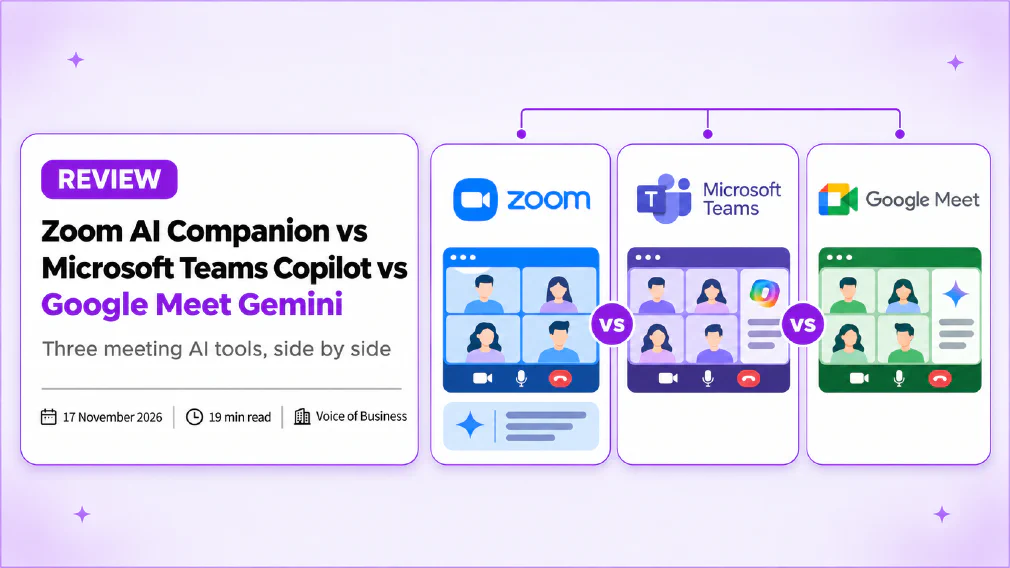
Zoom AI Companion, Microsoft Teams Copilot and Google Meet Gemini all turn a meeting into a summary, a list of actions and a way to catch up when you join late. They are built into three different platforms, licenced three different ways and handle your meeting data under three different sets of promises. For most small businesses the question is not which is cleverest. It is which one fits the platform you already pay for, and what you must check before you switch it on.
This comparison is based on each vendor’s own documentation as it stood on 17 November 2026: Zoom’s support and product pages, Microsoft’s Teams support and Copilot privacy pages, and Google’s Meet support page and Workspace privacy hub. We have not run all three on the same meeting, so we say where a claim comes from and where a page was silent. Vendors change these features often, so treat anything below as a starting point and check your own account.
Key takeaways
- All three produce meeting summaries, suggested actions and a catch-up for late joiners. The differences are in licensing, controls and where the data goes.
- Zoom has moved from the AI Companion name towards describing features by function, with a separate ZoomMate licence for agentic and metered features.
- Microsoft’s Copilot in Teams can answer questions during and after a meeting, but you need live transcription on to prompt it about the meeting afterwards.
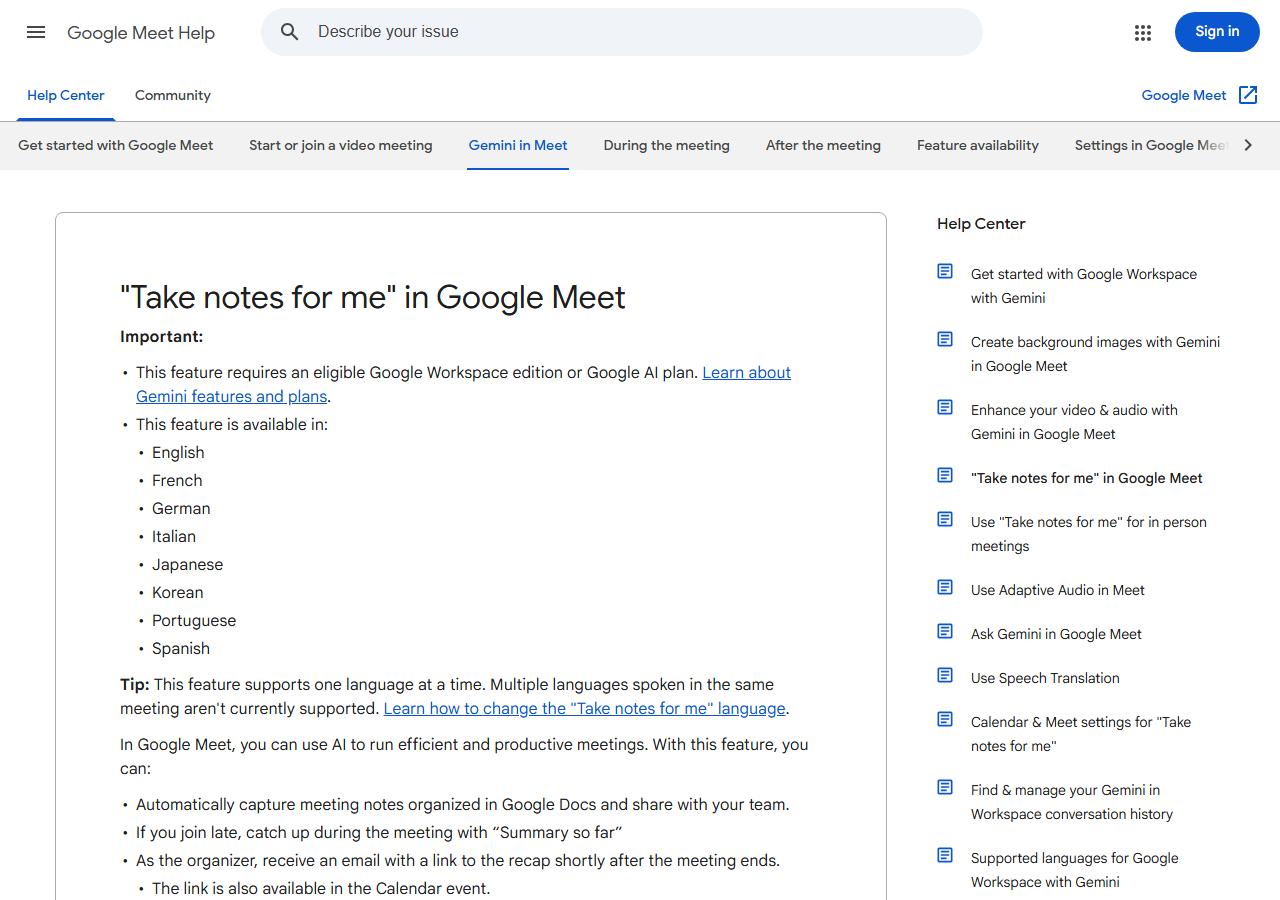
- Google’s Take notes for me writes into a Google Doc with Quick notes and Full notes tabs, in eight listed languages, one language per meeting.
- Each vendor says it does not use your meeting content to train its models, in different words. Read the exact wording for the plan you are on.
- Microsoft states EU Data Boundary coverage for Copilot, with an exception for Anthropic models. Zoom and Google did not state a European residency position on the pages we read.
- Pick the tool that belongs to the platform you already use, then test it on one real meeting before you roll it out.
What do Zoom AI Companion, Teams Copilot and Gemini in Meet actually do?
At the core, the same four jobs. Each one can write a summary of the meeting, pull out suggested action items, let you ask questions about what was said, and catch you up if you arrive late. Each also leans on a transcript, which is a text record of what was spoken, and so each depends on the quality of the AI transcription underneath it.
The jobs look similar on a feature list. They differ in where the output lives and who can see it:
| Zoom AI Companion | Microsoft Teams Copilot | Google Meet Gemini | |
|---|---|---|---|
| Summary after the meeting | Meeting summaries | Recap in the meeting chat and Recap tab | Notes in a Google Doc, emailed to the organiser |
| Action items | Suggested next steps and tasks | Suggested action items | Action items in Quick notes and Full notes |
| Catch up when late | In-meeting questions | Offers to catch you up if you join more than 5 minutes late | Summary so far |
| Ask questions | In-meeting questions | Prompt Copilot during or after the meeting | Ask Gemini in Meet |
| Where output lives | Zoom products | Teams chat and Recap | Google Docs and Calendar |
The table reflects the pages we read. It is a map, not a test result.
What has changed with Zoom AI Companion and ZoomMate?
Zoom is the one of the three where the product name is moving, so it deserves a careful look. When Zoom launched AI Companion in 2023, its announcement said it was available at no additional cost with paid Zoom user accounts. Zoom’s current support article, “Getting started with Zoom AI features”, no longer leads with that name. It lists features by what they do, and it states that the agentic and metered features need a ZoomMate licence plus available AI Credits.
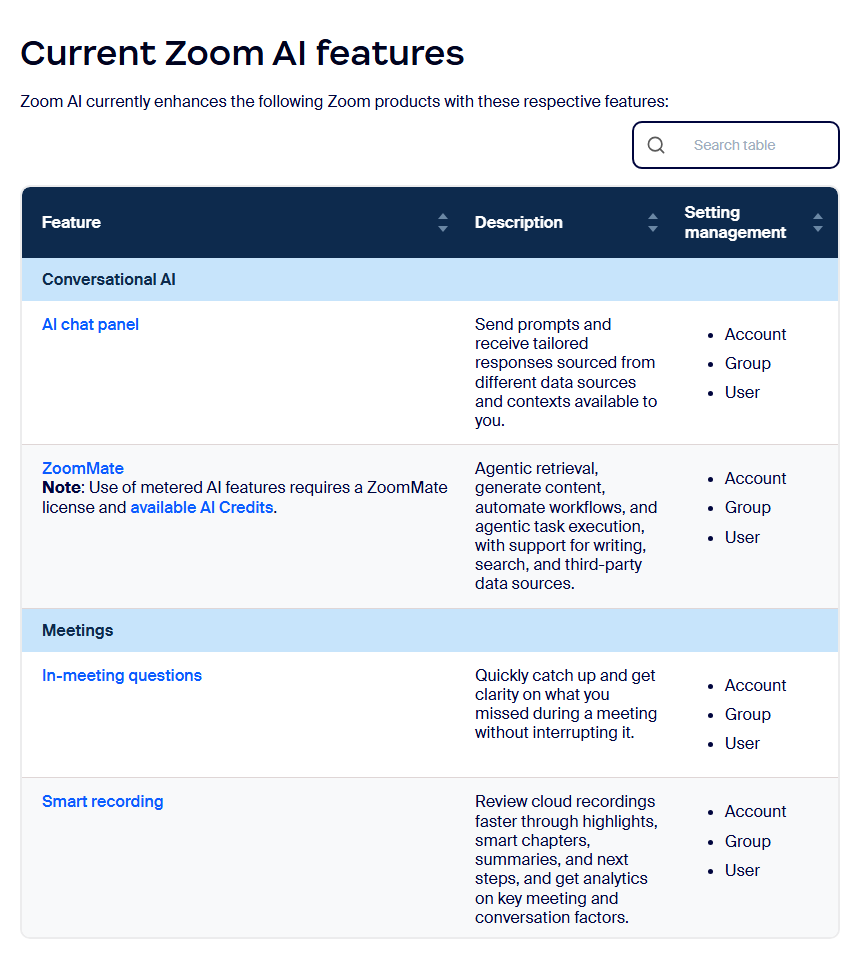
For a small business, the practical reading is this. Core meeting features such as summaries and in-meeting questions are described without a licence requirement and are governed by settings. The deeper, agent-style features sit behind ZoomMate. Zoom’s product page for ZoomMate also describes an entry tier with a monthly allowance, for example meeting summaries for three hosted meetings a month, and a paid tier with a larger pool of credits. We are not quoting prices here, because they change and differ by country. Look at the Zoom product page for your own region.
Because the naming is in flux, ask your Zoom account manager or admin one plain question: which of the features I want are included in my current plan, and which need ZoomMate and credits? That answer, in writing, is worth more than any comparison page.
Which Licence do you need for each meeting AI?
This is where the three differ most, and where surprise bills and surprise gaps come from.
Zoom. Core features are described as controlled by account, group and user settings. Agentic features and some chat features need a ZoomMate licence and AI Credits. The meeting host’s plan matters, so check it for the person who organises most of your calls.
Microsoft. Microsoft’s support page says intelligent recap is available as part of Teams Premium or as part of the Microsoft Copilot licence. Microsoft 365 Copilot is a per-user add-on to a Microsoft 365 plan, so the cost scales with the number of people you licence. Our review of Copilot Chat vs Microsoft 365 Copilot explains the difference between the included chat experience and the paid licence, and the glossary entry on Microsoft 365 Copilot is a quick refresher.
Google. Google’s Meet support page says Take notes for me requires an eligible Google Workspace edition or Google AI plan, and the meeting organiser must have an edition that includes it. The page does not list the editions and sends you to a separate article, so look at that list against your own subscription. If your organiser is on a lower tier than your colleagues, notes may not start at all.
The common trap in all three is the same: the person who organises the meeting is the person whose licence matters. A team that licences only some staff will find the feature works in some meetings and not others.
How do the meeting Summaries compare?
Summaries are what most people buy these tools for, so this is the section most buyers read first. We cannot tell you which summary reads best without running all three on one meeting, but we can tell you how each one is produced and delivered.
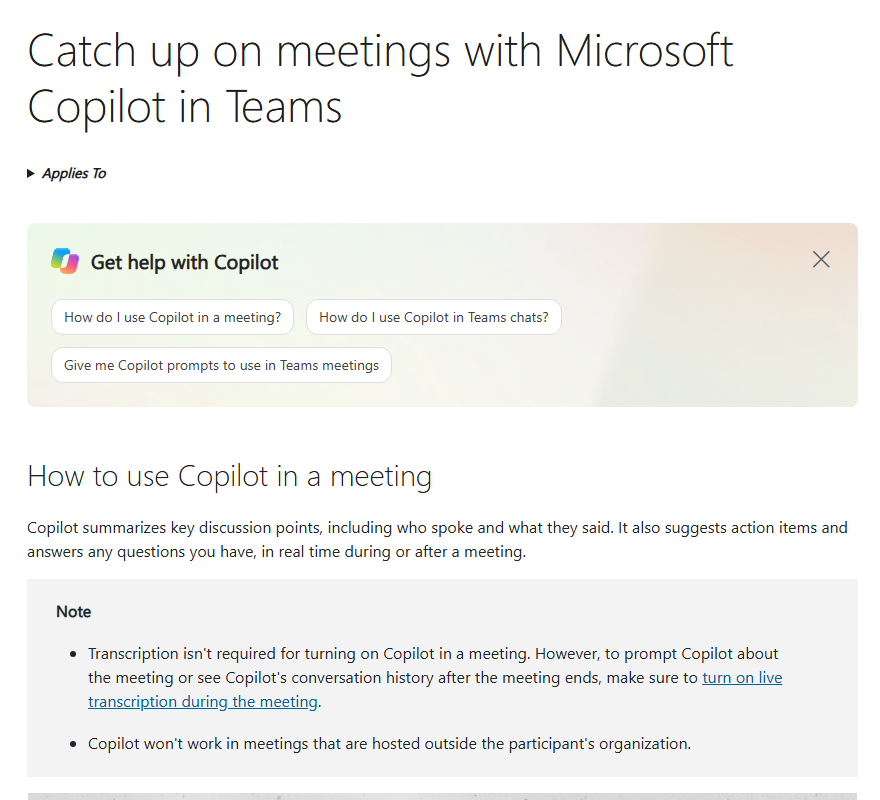
Teams Copilot summarises key discussion points, including who spoke and what they said, suggests action items, and answers questions during or after the meeting. Afterwards you open it from the meeting chat or the Recap tab. The transcript matters: Microsoft says that to prompt Copilot about the meeting or to see its conversation history after the meeting ends, live transcription must be on. Under the setting that limits Copilot to the meeting itself, anything not transcribed is unavailable once the meeting ends.
Gemini in Meet writes notes into a Google Doc with two tabs. Quick notes is a short summary with action items. Full notes is a longer overview with a summary, decisions, action items and details. Google can add screenshots of a presentation to the notes, but only if the presentation was on screen for at least 10 seconds. The organiser gets an email with a link shortly after the meeting ends, and the link also appears in the Calendar event.
Zoom produces meeting summaries and, on paid tiers, describes unlimited note-taking and custom summary templates. Its smart recording feature adds highlights, smart chapters and next steps to cloud recordings, which is useful if your team watches recordings more than it reads notes.
The format differences have a real business effect. A Google Doc is easy to edit and share. A Teams recap sits inside the meeting chat, where the people who were invited already look. A Zoom summary sits with the meeting or recording. Choose the one whose output lands where your team already works.
How well do they handle catch-up for late joiners?
Late joining is the feature people notice first, because it saves a small embarrassment every time. All three offer it.
Teams Copilot can offer to catch you up if you join more than 5 minutes late. Gemini in Meet offers Summary so far for anyone who arrives after the start. Zoom’s in-meeting questions let you ask what you missed without interrupting the speaker. All three therefore solve the same problem in three styles: an automatic offer, a button and a question box.
The more important point is what each one needs in the background. Teams needs transcription on for the fuller question-and-answer experience. Gemini needs the organiser on an eligible edition. Zoom needs the feature enabled in your account settings. If a catch-up does not appear, the cause is almost always one of those switches rather than a fault.
Which one copes Best with meetings that include clients and suppliers?
Most small businesses spend half their meeting time with people outside the company, so this is where a feature list can mislead.
Microsoft is the most explicit. Its page says Copilot does not work in meetings that are hosted outside the participant’s organisation. That means a supplier hosting a call on their own Teams tenant gets no Copilot for you, even if you have the licence. If you host, it works for your meeting as your settings allow.
Google leaves the choice with the host. When notes finish, the host chooses who receives them: all invited guests, including people outside your organisation, invited guests inside your organisation only, or hosts and co-hosts only. That flexibility is useful, but it also means a hurried host can share notes more widely than intended. Notes access also follows the document’s sharing settings, and the page notes that group email recipients need individual access.
Zoom’s controls sit with the account admin, who can enable or disable AI features for the whole account, for specific groups or for individual users, and can lock settings so users cannot change them. For a client-facing team that is a reasonably clean way to keep the feature on for internal meetings and off for sensitive external ones.
Whichever you use, tell external guests when an AI tool is running. It is courteous, it is often a legal requirement, and our article on whether AI meeting notes can be used legally covers the consent and recording points in more detail.
Where does your Data go and is it used to train Models?
This is the question that should decide the purchase for any business that discusses customers, staff or money on calls. Here is what each vendor says on the pages we read.
Zoom says it does not use customer audio, video, chat, screen sharing, attachments or similar communications content to train its own or third-party AI models. It also says that for features using third-party model providers, relevant data is shared with those providers when the feature is used, and that processing may occur in US-based data centres. Zoom may change the models it uses over time.
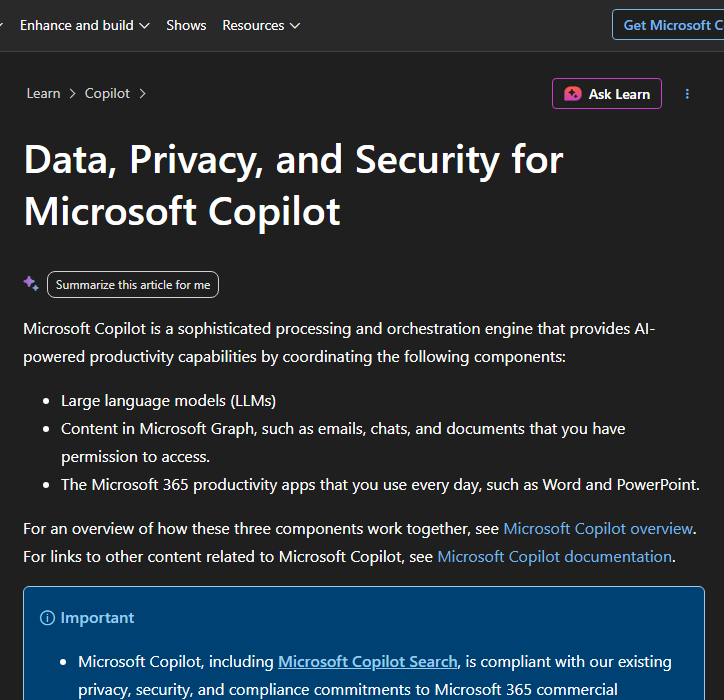
Microsoft says prompts, responses and data accessed through Microsoft Graph are not used to train the foundation models behind Copilot. Copilot only surfaces organisational data that the individual user has at least view permission to see, so it inherits whatever is wrong with your permissions. The stored record of a user’s interactions can be managed by admins through Microsoft Purview, and users can delete their own Copilot activity history.
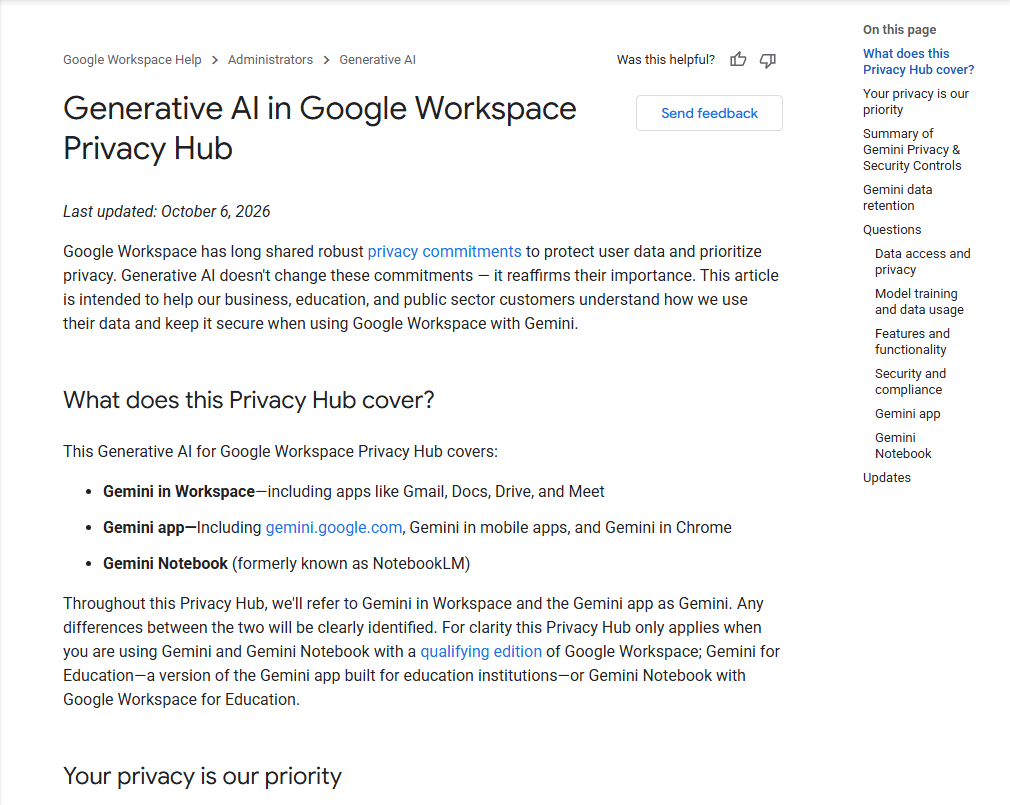
Google says Workspace “does not use customer data for training models without customer’s prior permission or instruction”, and that Gemini prompts in Workspace are treated as customer data under its data processing terms. The privacy hub says Gemini notes follow your organisation’s Meet retention policy.
Three vendors, three similar promises, none identical. The word that matters in each is the scope: which products, which plans and which kinds of content the promise covers. A promise on a business plan may not apply to a personal account, so make sure your people use the business account for work calls. Our guide to what is safe to paste into AI tools sets out the same principle for chat tools, and our entry on data protection covers the basics.
Which meeting AI is Best for EU Data Residency and GDPR?
For a business in the EU or serving EU customers, residency and GDPR compliance are the practical test.
Microsoft is the most specific on the pages we read. It says Copilot is compliant with its privacy commitments to Microsoft 365 commercial customers, including the GDPR and the EU Data Boundary, and that for EU users the EU traffic stays within the EU Data Boundary. It then adds an exception: models provided by Anthropic as a subprocessor are currently excluded from the EU Data Boundary. If an exception like that matters to you, ask Microsoft which model handles meeting recap on your tenant.
Zoom is clear that some features use third-party model providers and that processing may occur in US-based data centres. That is not a bar to using it in Europe, but it is a fact your data protection assessment should record.
Google’s privacy hub, as fetched, did not describe data residency for Gemini in Workspace and did not make GDPR-specific commitments on that page, referring to separate privacy and security pages. Treat that as a gap to close with Google’s documentation or your reseller, not as a finding that Google is non-compliant.
If this is the deciding factor for you, our glossary entry on data residency explains the term, our entry on the GDPR covers the regulation, and our comparison of the EU AI Act and GDPR shows how the two overlap. The wider question of where AI runs is covered in cloud AI vs on-premise AI.
What Settings should an admin check before switching them on?
The most common failure with meeting AI is not a bad summary. It is a feature switched on for everyone, by default, before anyone decided who should see what. Before rollout, an admin of any of the three should confirm the following.
- Who can start it. Google lets hosts control note-taking when Host Management is on. Microsoft lets organisers choose between Copilot with transcription, Copilot only during the meeting, and Off. Zoom lets admins scope features to account, group or user.
- Who receives the output. Google lets the host choose all guests, internal guests or hosts only. Check what your defaults are.
- Where the output is stored and for how long. Google says notes follow the Meet retention policy. Microsoft stores Copilot interaction history in line with your other Microsoft 365 content, and admins can set retention through Purview. Check data retention rules against your own obligations.
- Consent. Google has an admin setting, off by default, that requires explicit consent from all participants before notes, recording or transcription start. Look for the equivalent in the others.
- Permissions hygiene. Copilot reflects your permissions. If a folder is shared too widely today, a meeting question may surface it tomorrow.
- Sensitive meetings. Decide in advance which meetings stay off, such as disciplinary, legal, board and some client calls.
Write the answers into a short AI use policy for your team. Staff who are told nothing will use the tools anyway, which is how shadow AI starts, and our piece on why banning AI tools at work does not work explains why a ban is not the answer.
Can you use AI meeting notes legally?
Usually yes, with conditions. The legal questions are consent to record, the lawful basis for processing the personal data in the transcript, and how long you keep it. These vary by country and by who is on the call, and nothing here is legal advice. Our dedicated article on whether AI meeting notes can be used legally goes through them. Here we add two practical points drawn from the vendor pages.
First, all three give you a way to stop the capture. Microsoft’s Off setting disables Copilot, recording and transcription together. Google lets internal participants stop note-taking at any time. Zoom admins can disable AI features for a group.
Second, a transcript is a record. It can be requested, retained, and used as evidence. A meeting where people spoke loosely because they assumed nothing was written down is now a meeting with a written record. Tell people early.
How Accurate are AI meeting Summaries?
Accurate enough to save time, never accurate enough to send unread. Google’s own page warns that summaries can be incomplete or missing after connectivity problems, for meetings shorter than the recommended length, or when content does not follow its acceptable use policy. It recommends meetings of 15 minutes to 8 hours. Google also supports eight spoken languages and one language per meeting, so a call that switches between languages will suffer. Microsoft tells users to review generated content before sharing it.
The errors to look for are always the same ones. Names and companies misheard by the transcript. Figures that moved a decimal place. A decision recorded that was only discussed. An action assigned to the wrong person because two people share a first name. This is a case of the wider problem described in our glossary entry on hallucination, and the habits in how to reduce AI hallucinations apply here: give the tool good input, and keep a person in the loop. Our checklist for checking AI output before it goes to a customer is a good model for a two-minute review of any summary that leaves the building. The idea of a human in the loop is the control that matters most.
Which meeting AI is Best for a Small Business?
There is no single winner, and the honest answer is shorter than most comparisons admit: use the one that belongs to your meeting platform.
Choose Teams Copilot if your business runs on Microsoft 365. Copilot sees your Microsoft Graph content, respects your permissions and sits alongside your documents, email and Teams chat. The cost is licensing per person and the need to clean up permissions first. If you are thinking about the wider Microsoft decision, our comparison of ChatGPT vs Copilot for business and our review of Microsoft Copilot vs Google Workspace AI put the meeting tools in context.
Choose Gemini in Meet if your business runs on Google Workspace. The notes land in a Google Doc, which is easy to edit and share, and host controls over who receives them are clear. The cost is that you must confirm the organiser’s edition and check the residency position yourself.
Choose Zoom’s AI features if your team lives in Zoom, particularly if you host many external calls or use Zoom Phone and Chat as well. The admin controls are granular, and the features are described without a licence requirement for core meeting functions. The cost is the naming and licensing flux around ZoomMate, so get your entitlement in writing.
Consider a separate note-taker if you use a mix of platforms. A third-party tool can join any meeting, but then another company handles your meeting data. Our comparison of Otter vs Fireflies vs Copilot covers that route.
Before you commit anywhere, use our guide on how to choose an AI vendor to ask the right questions about data, support and exit terms.
How do you test them in one week?
Do not judge on a demo. Run a short, honest trial on real meetings.
- Pick three meeting types. An internal catch-up, a client call and a longer planning session.
- Switch on the one tool you already own. Do not buy a second platform for the trial.
- Time the review. Record how long a person spends fixing each summary. A summary that takes ten minutes to correct has saved nothing.
- Score five things. Were the actions right, were the names right, was anything invented, did late joiners find the catch-up useful, and did anyone object to the recording?
- Check the controls. Try turning it off mid-meeting. Try an external guest. Try a meeting hosted by someone else.
- Decide on evidence. Keep it, widen it or switch it off.
This is a compressed version of the approach in our 30-day AI pilot guide, and the follow-up question is in is your AI tool actually saving time. If your team needs a hand with the rollout, our Copilot Chat training and our set courses cover the practical habits, and an AI audit will tell you which of your tools are already in use and what data they touch.
Our verdict
None of the three is a bad choice, and none is safe to switch on without a decision. Teams Copilot is the most capable and the best documented on data protection, but it is tied to a per-person licence and to your permissions being in order. Gemini in Meet produces the most convenient output, a shareable Google Doc, but you need to confirm the edition and the residency position yourself. Zoom has the most granular admin controls and the least settled naming, so confirm what is included before you rely on it.
The decision rule is simple. Use the meeting AI that belongs to the platform your team already uses, switch it on for a small group first, write down who sees the output and which meetings stay off, and check every summary that goes to a client. Spend the effort on the settings, not on chasing the best summary.
Further reading
- Otter vs Fireflies vs Copilot: the standalone note-taker route.
- Microsoft Copilot vs Google Workspace AI: the suite-level comparison behind the Teams and Meet choice.
- Can AI meeting notes be used legally?: consent, recording and retention.
- Customer data and AI tools: what is safe to paste: the data rules that apply to every tool.
- How to choose an AI vendor: the questions to put to any supplier.
Sources
- Getting started with Zoom AI features: the feature table, ZoomMate licence and AI Credits note, admin settings and the statement on training and third-party providers, dated 1 September 2026.
- Zoom ZoomMate page: the entry and paid ZoomMate tiers, the allowance for meeting summaries and the credits, as read on 17 November 2026.
- Zoom introduces Zoom AI Companion: the 2023 announcement that AI Companion came at no additional cost with paid accounts.
- Catch up on meetings with Microsoft Copilot in Teams: what Copilot does in a meeting, the transcription note, the licence statement and the external-meeting limit.
- Data, Privacy, and Security for Microsoft Copilot: no training on prompts and responses, EU Data Boundary, the Anthropic exception, permissions and retention.
- Take notes for me in Google Meet: the notes, Summary so far, languages, limits, consent and sharing settings.
- Generative AI in Google Workspace Privacy Hub: the training statement for Gemini in Workspace, last updated 6 October 2026.
FAQ
Questions we get asked
Is Zoom AI Companion still called AI Companion?
Partly. Zoom's current support article describes its AI features by what they do, such as meeting summaries and in-meeting questions, and refers to a separate ZoomMate licence for the agentic and metered features. Zoom's original 2023 announcement said AI Companion was available at no additional cost with paid Zoom accounts. Check your own account to see which features are switched on and which need a ZoomMate licence.
Does Microsoft Teams Copilot need a transcript?
Not to switch Copilot on. Microsoft's support page says transcription is not required for turning on Copilot in a meeting, but you need live transcription running if you want to prompt Copilot about the meeting or see its conversation history after the meeting ends. Anything that was not transcribed is not available to Copilot afterwards.
Do you need a paid Licence for Gemini in Google Meet?
Yes, in the sense that Google's page says Take notes for me requires an eligible Google Workspace edition or Google AI plan, and the meeting organiser must have an edition that includes it. Google does not list the editions on that page and points to a separate Gemini features and plans article, so check that list against your own subscription.
Which meeting AI is Best for a Small Business?
Usually the one that belongs to the meeting platform your team already uses, because that is where your meetings, calendars and permissions already live. Zoom suits teams who run most meetings in Zoom, Teams Copilot suits Microsoft 365 organisations and Gemini in Meet suits Google Workspace organisations. Run the same real meeting through the one you already own before paying for anything else.
Do these Tools train their Models on your meetings?
Each vendor says no for the products in this comparison, with different wording. Zoom says it does not use customer audio, video, chat or similar content to train its own or third-party AI models. Microsoft says prompts, responses and data accessed through Microsoft Graph are not used to train its foundation models. Google says Workspace does not use customer data for training models without the customer's prior permission or instruction.
Can the meeting AI work in meetings with external guests?
It depends on the tool and on who hosts. Microsoft's page says Copilot does not work in meetings hosted outside the participant's own organisation. Google lets the host choose whether notes go to all invited guests, including people outside the organisation, or only to people inside it. Zoom's controls sit with the account admin. Test an external meeting before you rely on any of them for client calls.
Are AI meeting Summaries Accurate?
They are drafts. Google's own page says summaries can be incomplete or missing after connectivity problems or for very short meetings, and Microsoft tells users to review generated content before sharing it. Names, figures, decisions and who owns each action are the usual weak points, so a person who was in the meeting should check them before anything goes to a client.
Do you have to tell people an AI is taking notes?
In practice, yes. Recording, transcribing and summarising a meeting can involve personal data, and some jurisdictions have consent rules for recording. Google lets an admin require explicit consent from all participants before notes start, and Microsoft and Zoom expose similar admin settings. Our article on whether AI meeting notes can be used legally covers the legal side, and none of this is legal advice.
Where is the meeting Data processed for EU customers?
Microsoft says Copilot is an EU Data Boundary service for EU customers, with a stated exception for models provided by Anthropic as a subprocessor. Zoom says some features use third-party model providers and that processing may occur in US-based data centres. Google's privacy hub does not describe data residency for Gemini in Workspace. Ask each vendor, in writing, where your meetings are processed and stored.
Can you switch the meeting AI off for a Sensitive meeting?
Yes, in all three, though the route differs. Microsoft's Off setting disables Copilot, recording and transcription for the meeting. Google lets internal participants stop note-taking at any time and lets admins require consent first. Zoom admins can enable or disable AI features for the whole account, for groups or for individual users, and can lock those settings.
Ready to Put This to Work?
Tell us where your team is with AI and we will tell you honestly what would make the biggest difference.